

Top 21 Excel Formulas Every User Must Know (With Examples)
Microsoft Excel is one of the world’s most powerful spreadsheet applications. Whether you’re a student, accountant, office professional, data analyst, business owner, or freelancer, learning Excel formulas can dramatically improve your productivity.
The good news? You don’t need to memorize hundreds of formulas.
In this guide, you’ll learn the 21 most useful Excel formulas that are used daily in offices, schools, finance departments, inventory management, sales reports, and business analysis.
Each formula includes:
- Simple explanation
- Syntax
- Practical example
- Best use case
- Tips to avoid mistakes
Let’s begin.
Why Learning Excel Formulas Is Important
Excel formulas help you:
- Automate repetitive calculations
- Save hours of manual work
- Reduce human errors
- Analyze large datasets
- Create professional reports
- Improve decision making
Whether you’re preparing invoices, calculating salaries, managing inventory, or analyzing sales, these formulas are essential.
Top 21 Excel Formulas Explained
| Excel Formulas | Purpose |
|---|---|
| SUM | Adds numbers |
| AVERAGE | Calculates average |
| ROUND | Rounds numbers |
| MIN | Finds smallest value |
| MAX | Finds largest value |
| COUNT | Counts numeric cells |
| COUNTA | Counts non-empty cells |
| SUMIF | Adds values based on condition |
| IF | Performs logical tests |
| INDEX | Returns value by position |
| MATCH | Finds position of value |
| VLOOKUP | Vertical lookup |
| XLOOKUP | Modern lookup function |
| HLOOKUP | Horizontal lookup |
| AVERAGEIF | Average with condition |
| LEFT | Extract left characters |
| RIGHT | Extract right characters |
| MID | Extract middle text |
| AND | Multiple conditions |
| OR | At least one condition |
| CONCAT | Joins text together |
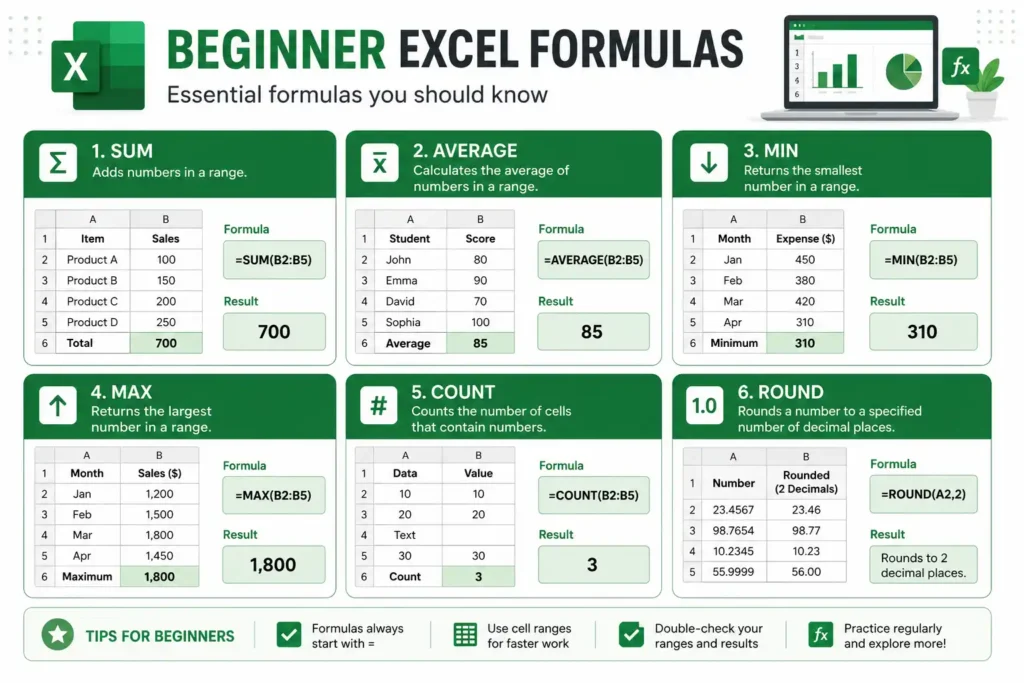
1. SUM Excel Formulas
Purpose
Adds multiple numbers together.
Syntax
=SUM(A1:A10)Example
If A1:A5 contains:
10
20
30
40
50
Formula:
=SUM(A1:A5)Result:
150Best for:
- Sales totals
- Expenses
- Monthly reports
2. AVERAGE Excel Formulas
Returns the average value.
=AVERAGE(B1:B10)Example:
40
50
60
Result:
50Useful for:
- Student marks
- Employee performance
- Monthly sales
3. ROUND Excel Formulas
Rounds a number to specified decimal places.
=ROUND(C2,2)Example:
23.45678Result:
23.46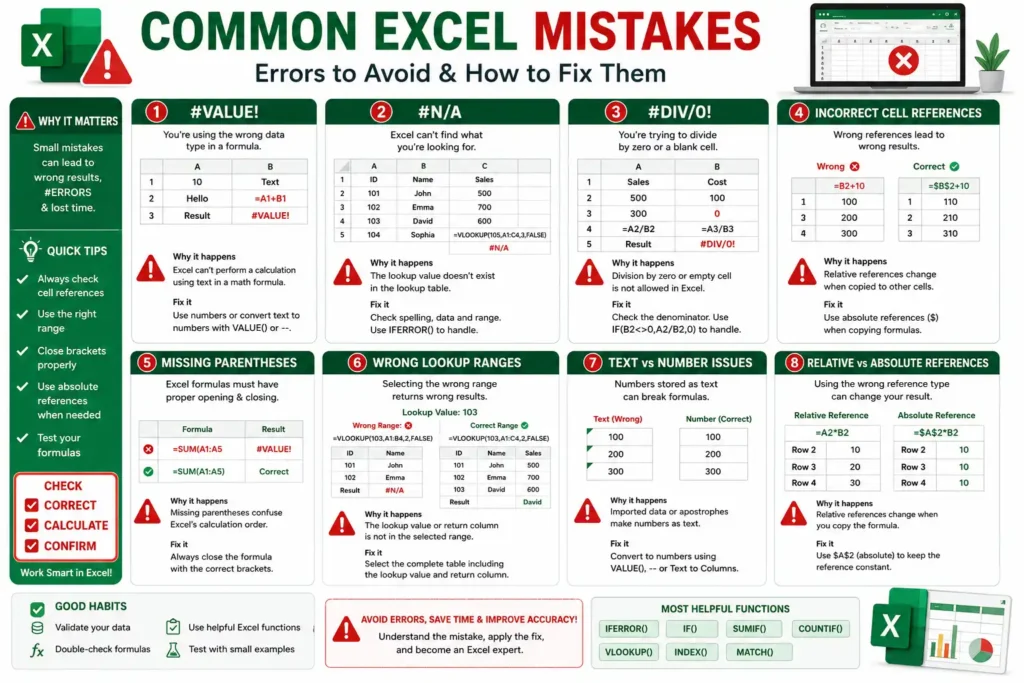
4. MIN Formula
Returns the smallest number.
=MIN(D1:D20)Result:
5Common use:
Finding the lowest price or minimum score.
5. MAX Formula
Returns the largest value.
=MAX(E1:E20)Useful for:
- Highest salary
- Maximum sales
- Top score
6. COUNT Formula
Counts cells containing numbers only.
=COUNT(F1:F20)Does not count:
- Blank cells
- Text
7. COUNTA Formula
Counts all non-empty cells.
=COUNTA(A1:A20)Includes:
- Numbers
- Text
- Dates
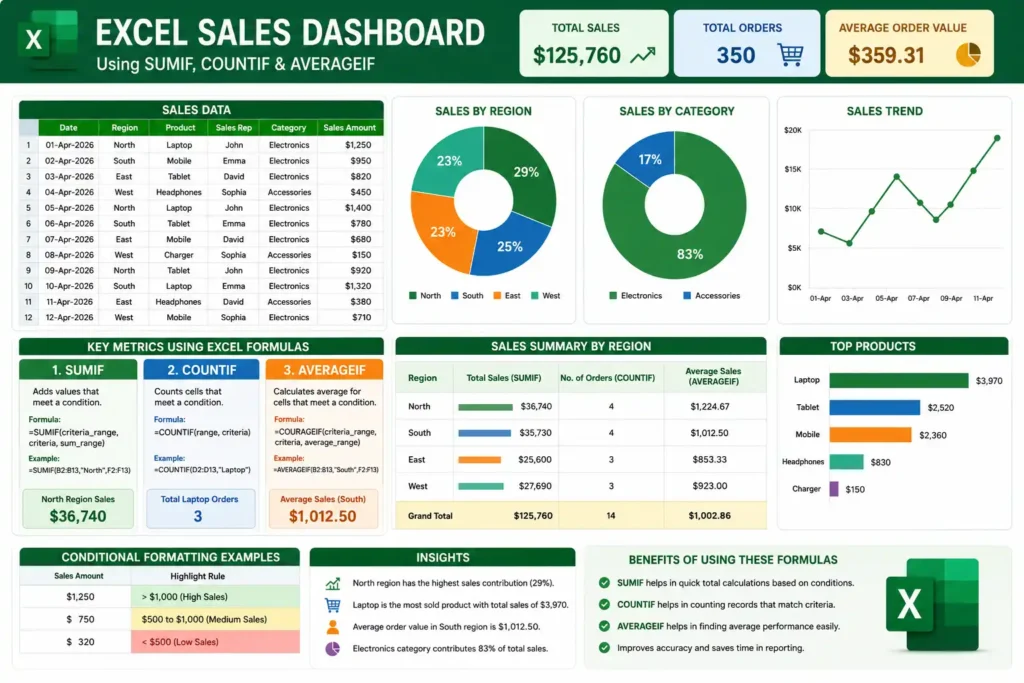
8. SUMIF Formula
Adds values that meet a condition.
Syntax:
=SUMIF(A:A,"Laptop",B:B)Example:
| Product | Sales |
|---|---|
| Laptop | 500 |
| Mobile | 300 |
| Laptop | 700 |
Result:
1200Perfect for:
- Sales reports
- Category totals
- Inventory
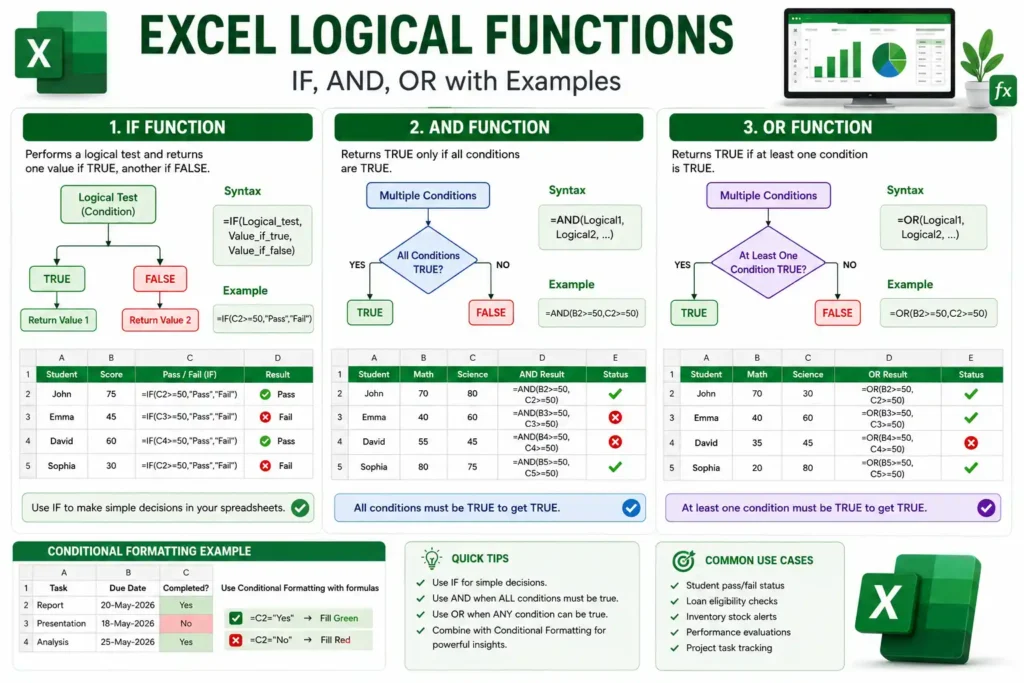
9. IF Excel Formulas
Performs a logical test.
Syntax
=IF(A2>=50,"Pass","Fail")Example
Score:
75Result:
PassWidely used for:
- Attendance
- Grades
- Commission
- Status
10. INDEX Formula
Returns a value from a specified row and column.
=INDEX(A2:C10,3,2)Useful when working with large datasets.
11. MATCH Excel Formulas
Finds the position of a value.
=MATCH("Apple",A2:A10,0)Returns:
4Meaning Apple is in the 4th position.
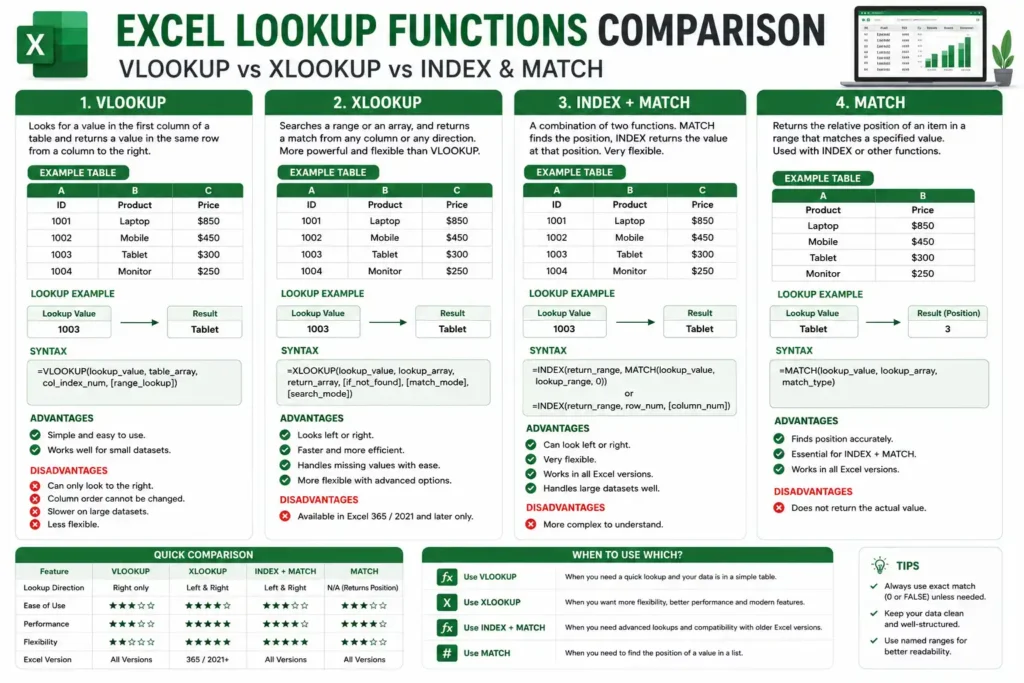
12. VLOOKUP Formula
Searches vertically for a value.
=VLOOKUP(A2,D:F,3,FALSE)Common uses:
- Employee records
- Product prices
- Student details
Common Mistakes
- Lookup value not in first column
- Using TRUE instead of FALSE
- Incorrect column number
13. XLOOKUP Formula
Modern replacement for VLOOKUP.
=XLOOKUP(A2,D:D,F:F)Advantages:
- Faster
- Searches left and right
- Better error handling
- Easier syntax
14. HLOOKUP Formula
Searches horizontally.
=HLOOKUP("Price",A1:E5,4,FALSE)Best for tables arranged in rows.
15. AVERAGEIF Excel Formulas
Calculates average based on a condition.
=AVERAGEIF(A:A,"Laptop",B:B)Useful for:
- Department averages
- Product averages
- Employee performance
16. LEFT Excel Formulas
Extracts characters from the left.
=LEFT(A2,5)Example:
ShortcutGuruResult:
Short17. RIGHT Excel Formulas
Returns characters from the right.
=RIGHT(A2,4)Example:
Excel2026Result:
202618. MID Formula
Extracts text from the middle.
=MID(A2,4,5)Useful for:
- Product codes
- Invoice numbers
- IDs
19. AND Excel Formulas
Returns TRUE only if all conditions are met.
=AND(A2>50,B2="Yes")Example:
TRUEUseful in HR, attendance, and eligibility reports.
20. OR Excel Formulas
Returns TRUE if at least one condition is true.
=OR(A2>50,B2="Yes")Perfect for flexible conditions.
21. CONCAT Formula
Combines text from multiple cells.
=CONCAT(A2," ",B2)Example
First Name:
JohnLast Name:
SmithResult
John Smith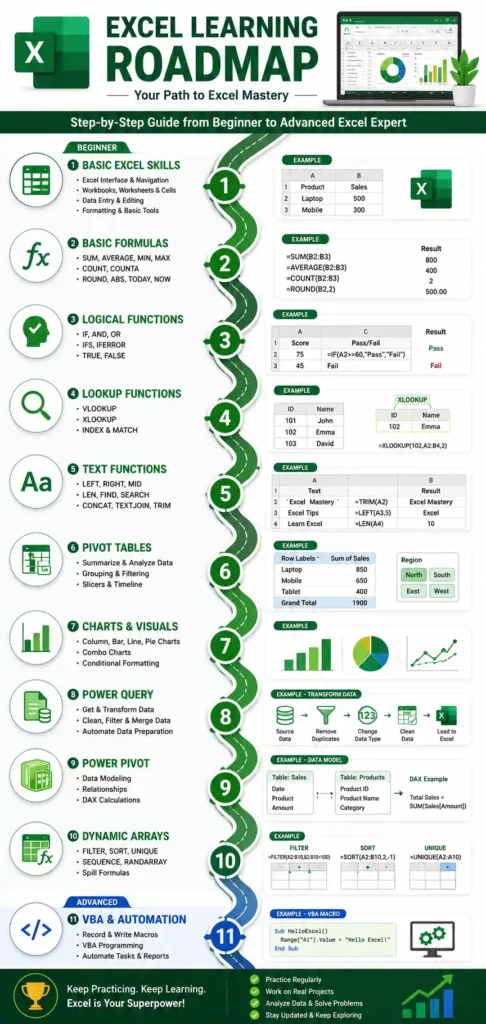
Excel Formulas Tips for Beginners
✔ Always begin formulas with =
✔ Use FALSE in lookup formulas for exact matches
✔ Keep your data clean and organized
✔ Use absolute references ($A$1) when copying formulas
✔ Learn keyboard shortcuts to work faster
✔ Practice using sample datasets
Common Excel Formula Mistakes
- Forgetting the equals sign (
=) - Selecting the wrong cell range
- Mixing text and numbers
- Using incorrect brackets
- Ignoring absolute references
- Copying formulas without checking references
Quick Reference Table
| Excel Formulas | Example | Purpose |
|---|---|---|
| SUM | =SUM(A1:A10) | Add numbers |
| AVERAGE | =AVERAGE(A1:A10) | Average |
| IF | =IF(A1>50,”Yes”,”No”) | Logical test |
| SUMIF | =SUMIF(A:A,”Laptop”,B:B) | Conditional sum |
| COUNT | =COUNT(A:A) | Count numbers |
| COUNTA | =COUNTA(A:A) | Count non-empty |
| VLOOKUP | =VLOOKUP(…) | Vertical lookup |
| XLOOKUP | =XLOOKUP(…) | Advanced lookup |
| INDEX | =INDEX(…) | Return value |
| MATCH | =MATCH(…) | Position lookup |
Benefits of Mastering Excel Formulas
- Finish work faster
- Improve data accuracy
- Reduce manual calculations
- Create better reports
- Increase productivity
- Enhance career opportunities
- Build confidence with data analysis
Internal Linking Opportunities
Use these anchor texts for related articles on your website:
- Excel Keyboard Shortcuts
- Microsoft Excel Tips and Tricks
- Excel Functions for Beginners
- Advanced Excel Tutorial
- Excel Pivot Table Guide
- Excel Data Validation
- Excel Conditional Formatting
- Excel Charts Tutorial
Frequently Asked Questions (FAQ)
What is the most useful Excel formula?
The SUM formula is the most commonly used because it quickly adds values in a range of cells.
Which Excel formula should beginners learn first?
Start with SUM, AVERAGE, COUNT, IF, and VLOOKUP. These cover most everyday spreadsheet tasks.
Is XLOOKUP better than VLOOKUP?
Yes. XLOOKUP is more flexible, easier to use, supports left and right lookups, and includes built-in error handling. It is available in Microsoft 365 and newer versions of Excel.
What is the difference between COUNT and COUNTA?
- COUNT counts only cells containing numbers.
- COUNTA counts all non-empty cells, including text, numbers, dates, and formulas.
How can I improve my Excel skills quickly?
Practice with real datasets, learn common formulas, use keyboard shortcuts, and apply functions to everyday tasks like budgeting, reporting, and inventory tracking.
Conclusion
Learning these Top 21 Excel formulas will help you work smarter, save time, and analyze data with confidence. Whether you’re preparing reports, managing finances, tracking inventory, or studying, mastering these essential functions lays a strong foundation for advanced Excel skills.
Start by practicing a few formulas each day, combine them in real-world scenarios, and gradually explore more advanced features like PivotTables, Power Query, and dynamic arrays. The more you practice, the more efficient you’ll become.
Ready to level up your Excel expertise? Bookmark this guide, share it with colleagues or classmates, and explore more Excel tutorials to continue improving your spreadsheet skills.