
Microsoft Excel is a powerful tool for data management, analysis, and visualization. Whether you’re a beginner or an advanced user, knowing the right Excel formulas and shortcuts can significantly enhance your efficiency and productivity. This blog post delves into essential Excel formula and formatting shortcuts that will help you navigate your spreadsheets like a pro.
Table of Contents
Excel Formulas for Beginners
Using Entire Row or Column References
When working with excel formulas, you might need to reference an entire row or column. This approach is particularly useful when dealing with dynamic datasets where the number of entries may change.
Example: Calculating the Average of a Column
To calculate the average of all values in Column D, use the formula:

Instead of typing D:D, you can simply click the column header. This method ensures that your formula automatically includes any new data added to the column.
Selecting All Cells with Formulas
To quickly select all cells containing formulas in your worksheet:
- Select a single cell.
- Press F5 (Go To).
- Click Special.
- Choose Formulas, then click OK.
Tip: While these cells are highlighted, you can apply a color background to easily identify which cells contain formulas.
Displaying All Excel Formulas
If you want to view all excel formulas in your worksheet instead of their results, use the shortcut Ctrl + ~. This will double the column widths and display all formulas. Press Ctrl + ~ again to switch back to the normal view.
Changing Cell References
Excel allows you to toggle between different types of cell references within a excel formulas using the F4 key. Click within the cell address in your formula and press F4 to cycle through:
- Absolute reference: $B$7
- Mixed reference (absolute row): B$7
- Mixed reference (absolute column): $B7
- Relative reference: B7
Copying Cell Entries Without Dragging
To copy a cell’s contents down a column without dragging:
- Enter data in a cell adjacent to the column you want to fill.
- Double-click the lower right corner (fill handle) of the cell.
If the cell entry is recognized by the AutoFill feature (e.g., months or weekdays), the adjacent cells will be filled accordingly. Excel extends the series based on the adjacent column data.
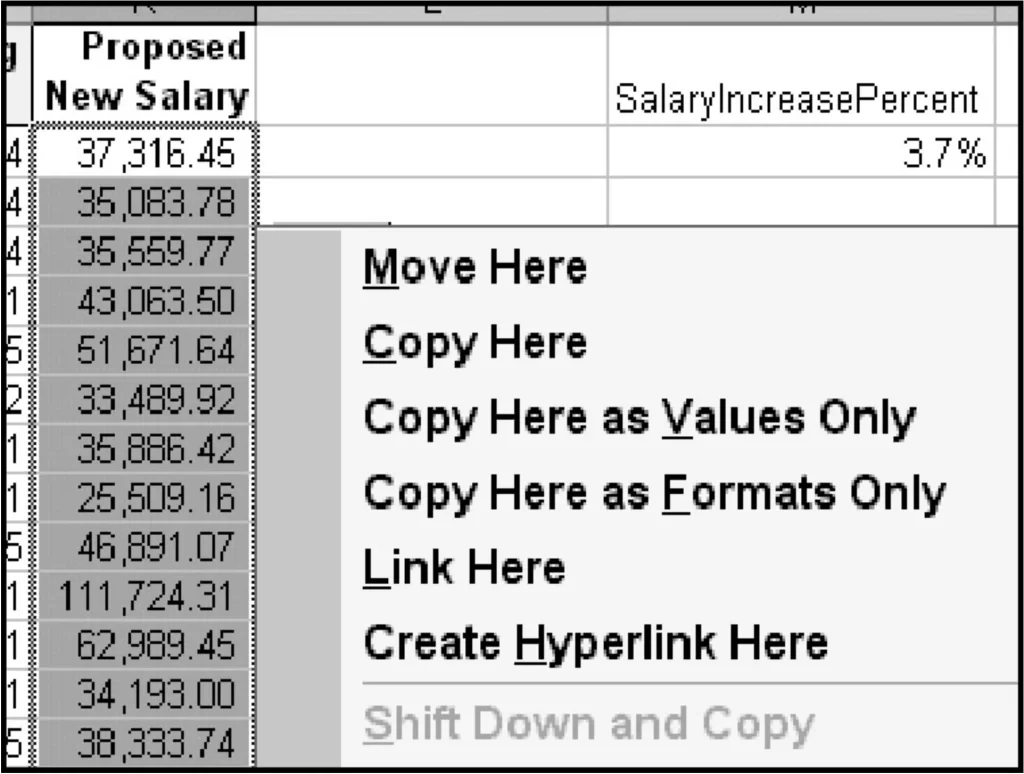
Converting Formulas to Values
You can quickly convert formulas in a range of cells to their resulting values:
- Select the range of cells.
- Right-drag the selection slightly and then back to its original position.
- From the pop-up menu, choose Copy Here as Values Only.
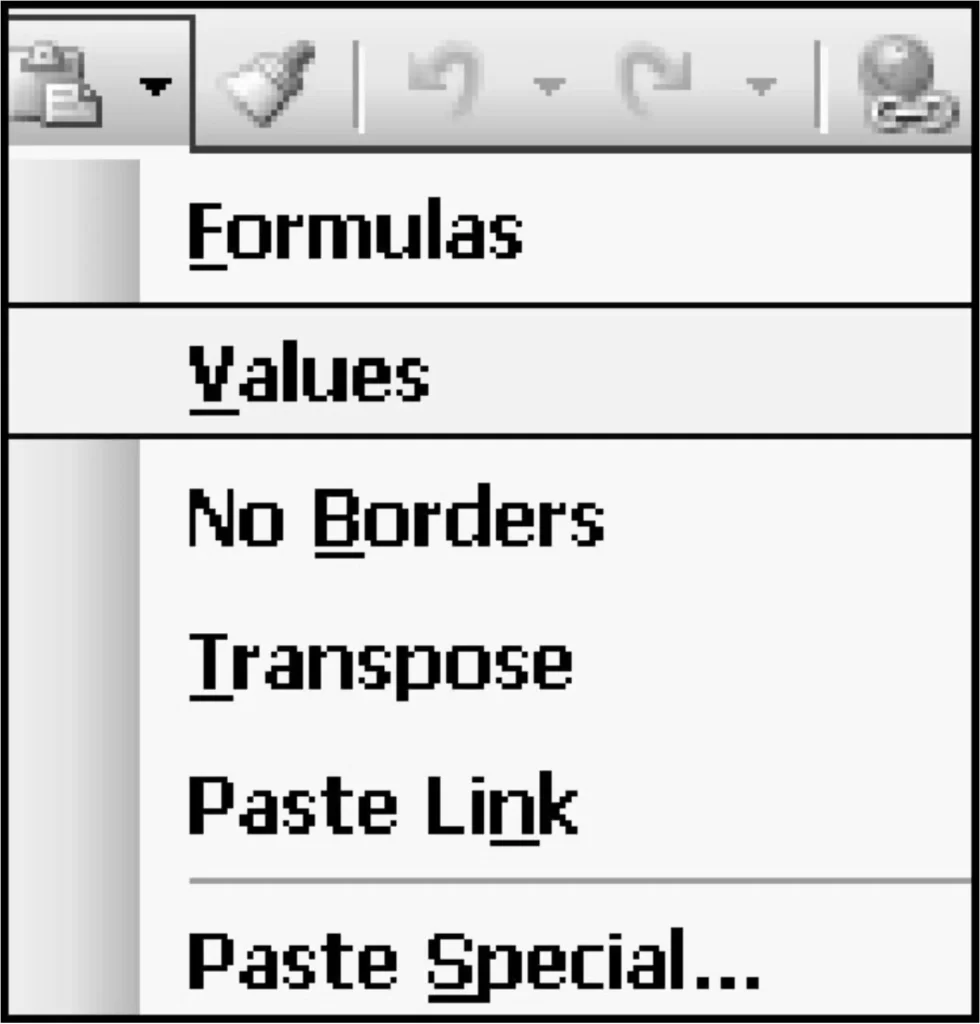
Alternatively, you can:
- Select the cells.
- Click Copy on the toolbar.
- Click the drop-down arrow on the Paste button and select Values.
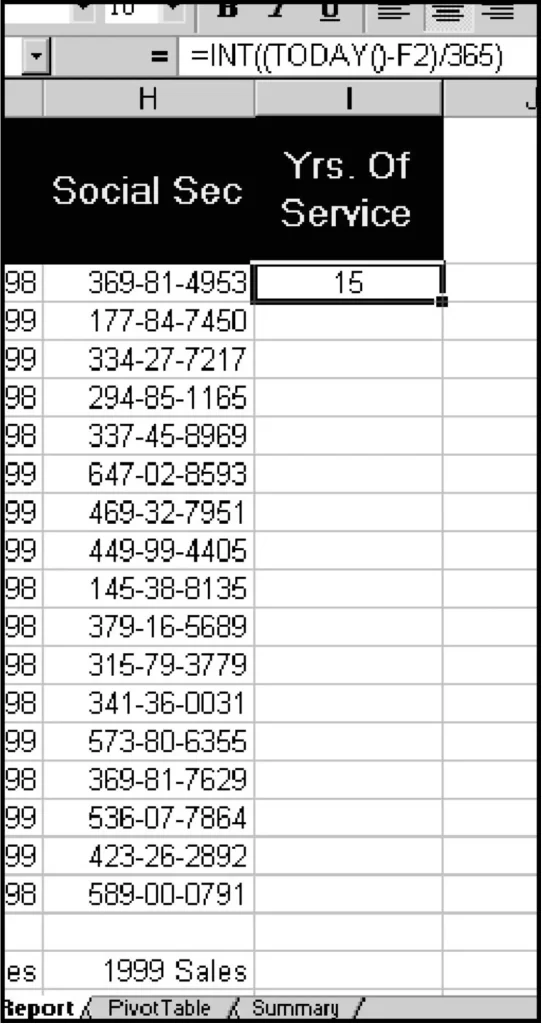
Evaluating Parts of Excel Formulas
To evaluate a specific part of a formula:
- Identify the section of the equation you wish to assess.
- Press F9 to convert the selected part to a value.
- Press Esc instead of Enter to retain the original formula.
Adjusting Cell Values
To increase the values of cells by a certain amount or percentage without a formula:
- By a specific amount:
- Enter the increment value in an empty cell.
- Click Copy.
- Select the target cells.
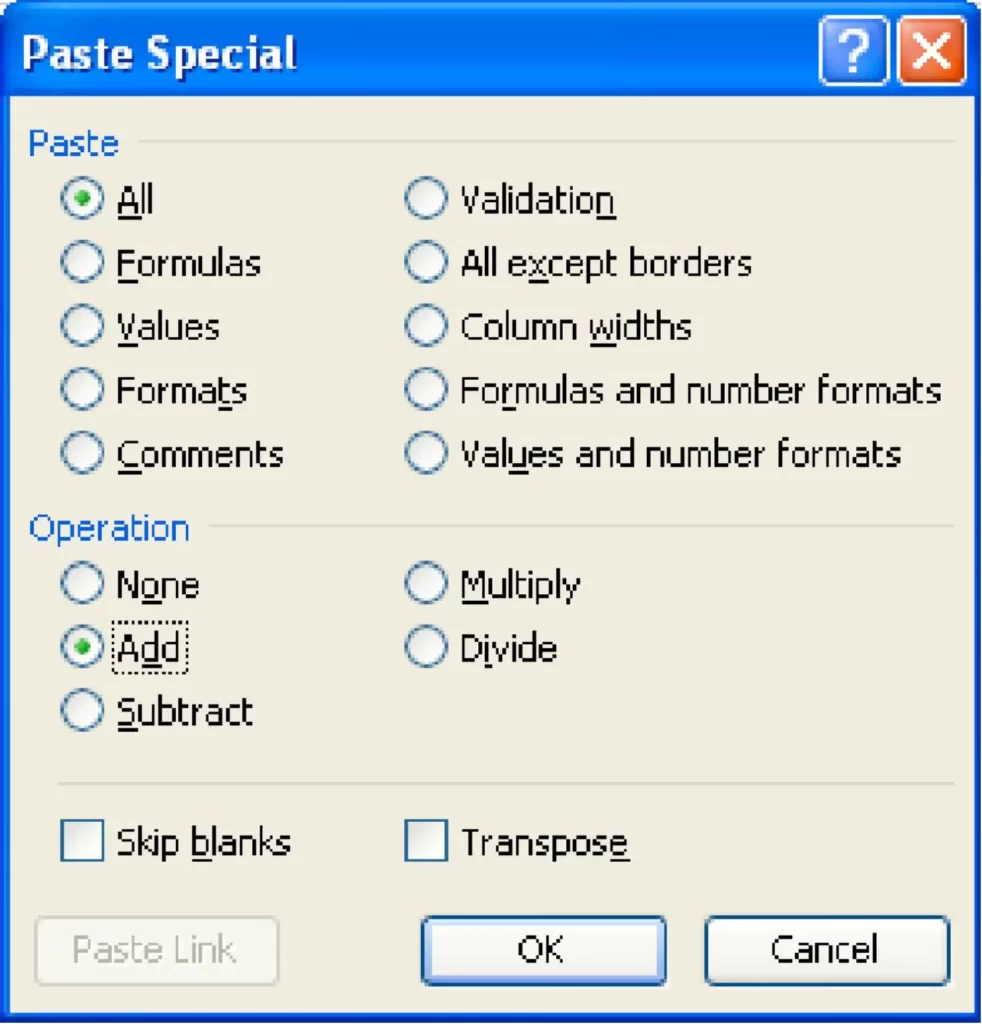
- Right-click and choose Paste Special.
- Click Add, then OK.
By a percentage:
- Enter the multiplier (e.g., 1.1 for 10% increase) in an empty cell.
- Click Copy.
- Select the target cells.
- Right-click and choose Paste Special.
- Click Multiply, then OK.
Using Auto Calculate
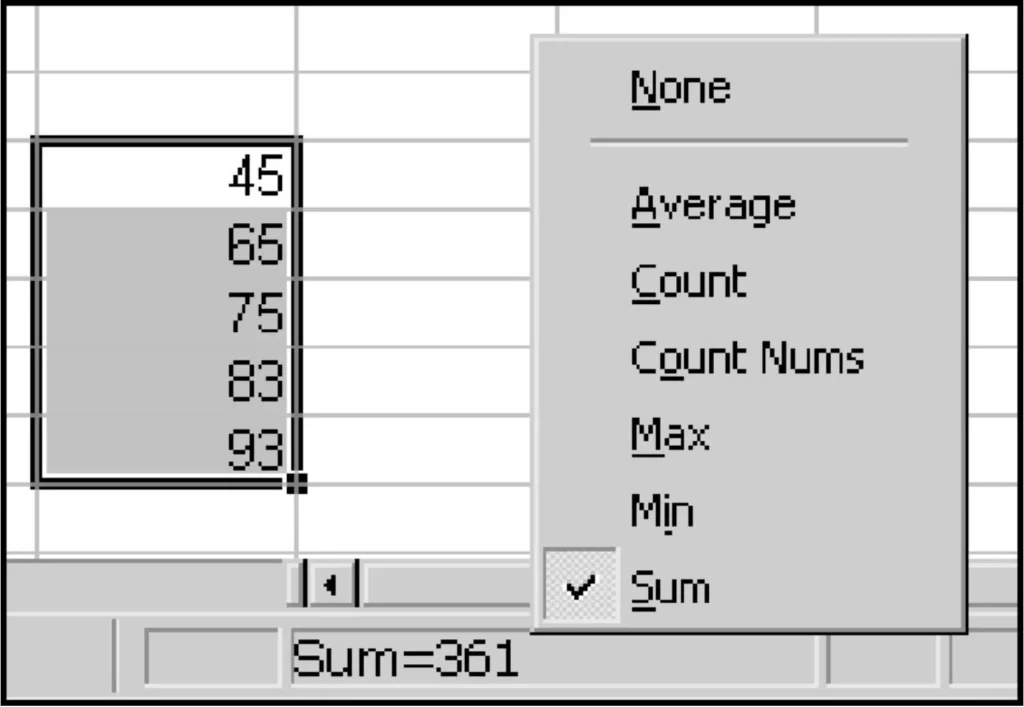
For quick calculations without entering excel formulas, select two or more cells. Excel displays the sum at the bottom right of the screen. Right-click this area to see other options like average, count, max, and min.
Cleaning Text with TRIM
To remove extra spaces from text:

This function eliminates all leading, trailing, and extra embedded spaces, leaving only single spaces between words.
Formatting Text with PROPER
Capitalize the initial letter of every word within a cell:

Formatting Shortcuts
Currency Format
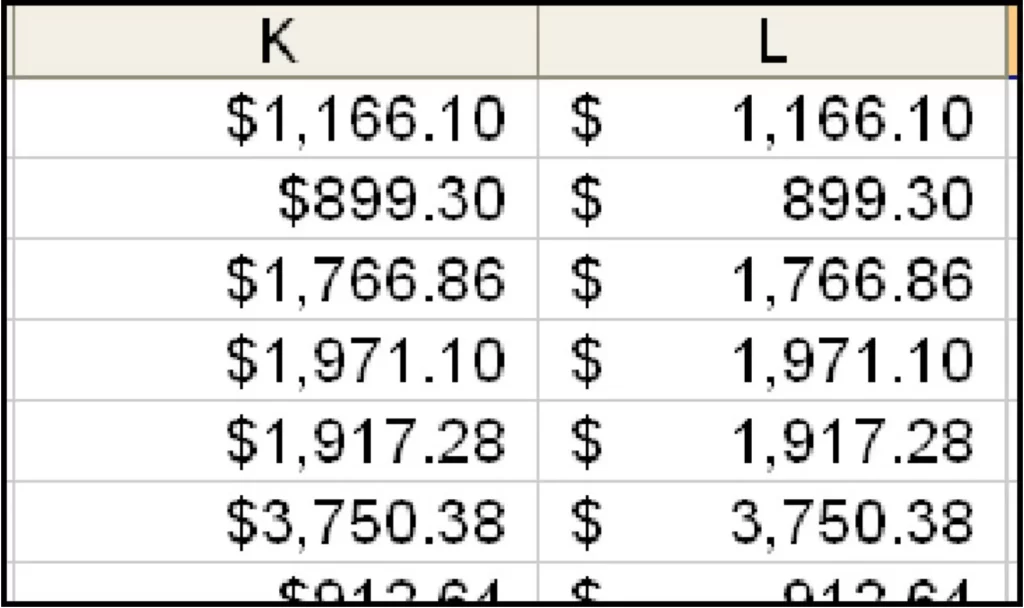
To format cells as currency with two decimal places, use:

This shortcut places the dollar sign immediately to the left of the value.
Number Format
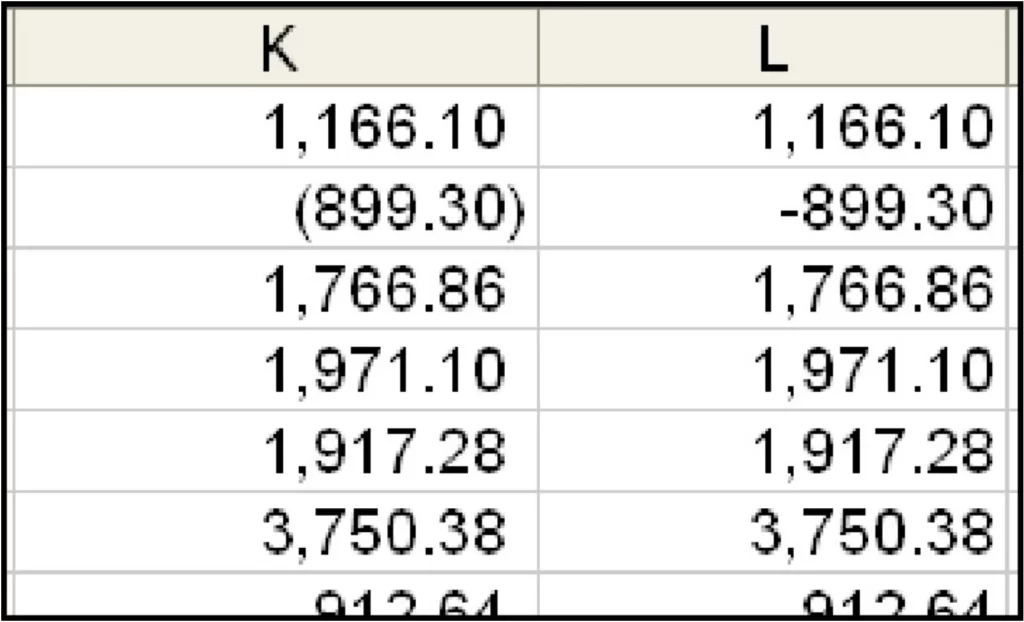
To format cells as numbers with two decimal places, use:

Date and Time Formats
- Dates: Ctrl + Shift + # (e.g., 17-Dec-07)
- Times: Ctrl + Shift + @ (e.g., 9:43 PM)
Special Formats for Social Security and Phone Numbers
Format cells as Social Security or phone numbers without typing special characters:
- Select the data entry range.
- Click Format > Cells > Number tab > Special.
- Choose Social Security number or Phone number.
Centering Data in Merged Cells
To center data in merged cells:
- Select the cells.
- Use the merge and center toolbar button.
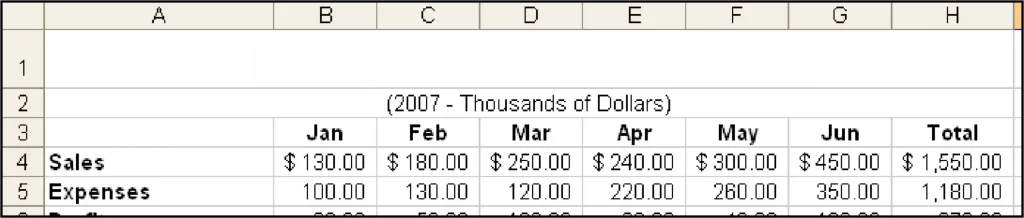
Summing Hours Exceeding 24
- Click Format > Cells > Number tab.
- Select Time.
- Choose [h]:mm:ss or create a custom format [h]:mm.
To correctly display hours totaling more than 24:
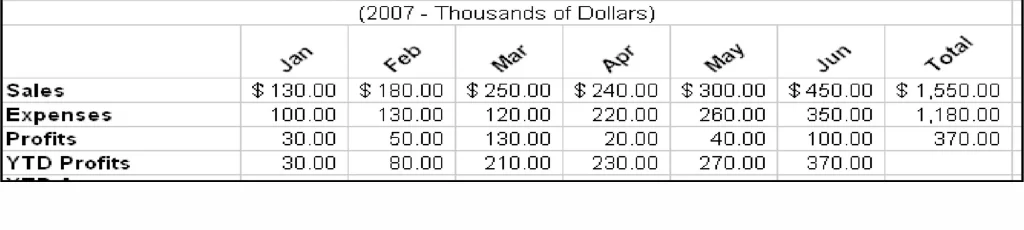
Angling Text
To angle text using the Format Cells Alignment command sequence:
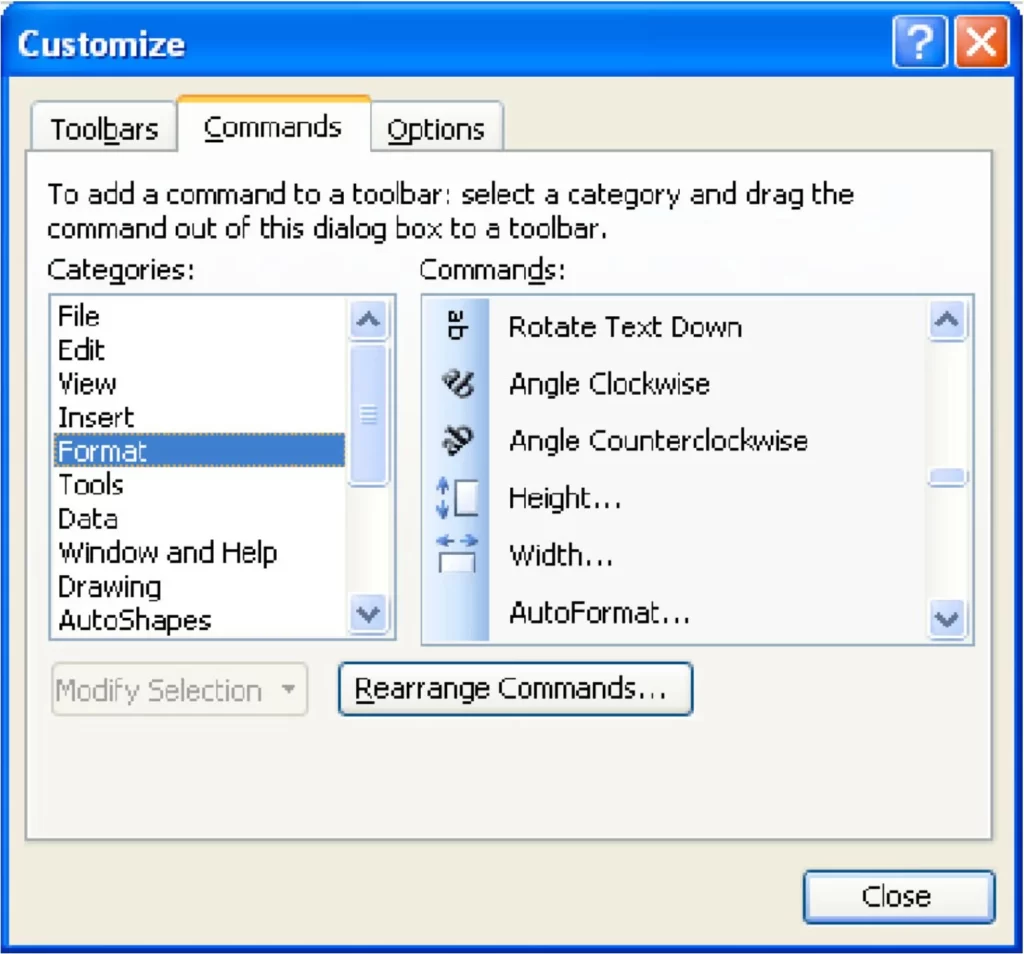
- To customize, simply right-click on any button in the toolbar.
- Click the Commands tab and drag the angled text options to a visible toolbar.
By mastering these Excel formula and formatting shortcuts, you can significantly enhance your productivity and make your data management tasks more efficient. Practice these excel formulas shortcuts regularly to become an Excel power user!
FAQ 10 – Excel Formulas for Beginners
1. What is the basic formula structure in Excel?
- Every formula starts with an = sign, followed by the function name or calculation (e.g.,
=A1+B1).
2. How do I add numbers in Excel?
- Use
=SUM(A1:A5)to add numbers in cells A1 to A5.
3. How can I find the average of values?
- Use
=AVERAGE(A1:A5)to get the average of a range.
4. What’s the formula to find the highest value?
- Use
=MAX(A1:A5)to get the largest number.
5. How do I find the smallest value?
- Use
=MIN(A1:A5)to get the smallest number.
6. How can I count the number of entries in a range?
- Use
=COUNT(A1:A5)for numeric entries,=COUNTA(A1:A5)for all non-empty cells.
7. How do I join text from two cells?
- Use
=CONCAT(A1, " ", B1)or=A1 & " " & B1.
8. How do I round numbers in Excel?
- Use
=ROUND(A1, 2)to round to 2 decimal places.
9. What formula can I use for conditional calculations?
- Use
=IF(A1>50, "Pass", "Fail")for simple conditions.
10. How can I look up data in a table?
- Use
=VLOOKUP(lookup_value, table_array, col_index, FALSE)for vertical lookups.
Conclusion
Excel’s extensive functionality can be overwhelming, but with these excel formulas shortcuts, you can streamline your workflow and achieve professional results more quickly. Incorporate these excel formulas tips into your daily routine, and watch your proficiency with Excel grow.
try these excel shortcuts in Excel
Thank you for your sharing. I am worried that I lack creative ideas. It is your article that makes me full of hope. Thank you. But, I have a question, can you help me?