

Alt Code Shortcuts Introduction :
Knowing how to use ALT code shortcuts when you want to insert special characters, symbols, or even foreign language characters into your documents can really make typing easier. Amazingly versatile- from simple accents to complex mathematical symbols ALT codes will allow adding just about anything with the assistance of these fast-inserting codes. This guide will go deep into the world of ALT-digit symbol codes and provide an elaborate resource for any need.
Table of Contents
What are ALT code symbol?
ALT digits symbol codes combine the ALT key with a set of digits that are entered on the numeric keypad. These are the various sets of codes through which special characters and symbols can be inserted, which are not provided under normal conditions of the keyboard layout. Holding down the ALT key and typing on the numpad allows for fast entry of many different characters.
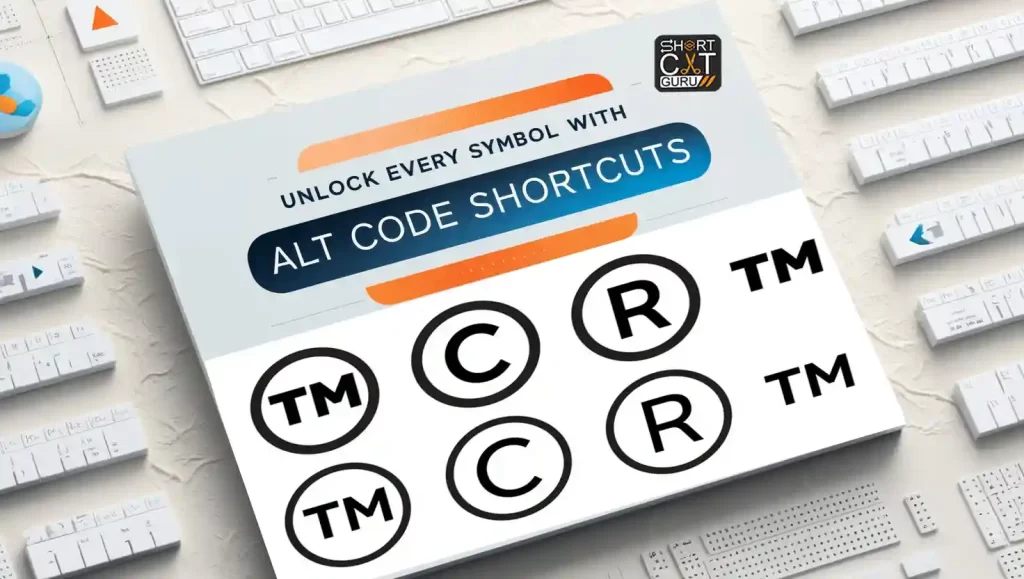
Examples of Common ALT Code for degree, Copyright & Trademark:
- ALT + 0153 : ™ Trademark
- ALT + 0169 : © Copyright
- ALT + 0176 : ° Degree Symbol
- ALT + 0174 : ® Right Symbol
ALT Code symbol Usage in Windows
If you would like to use ALT code symbol, follow these steps.
- Press the Num Lock Key to turn it on.
- On your keyboard, press the ALT key.
- While keeping the key above pressed, type your number code that you want from your numeric keypad.
- Release the ALT key and continue typing the symbol that will appear in your document.
Important Notes:
- Only while utilizing the numeric keypad not the number keys located at the top of your keyboard will ALT codes function.
- On laptops without a numeric keypad, you might also need to press the function key and the numbers simultaneously to access the numeric keypad.
The Long List of ALT Code Symbol and Special Characters
The following are ALT codes organized by function and appearance. Use these codes to quickly add symbols, foreign characters, or other special typographical marks to your text.
Currency Symbol for Alt Code Shortcuts
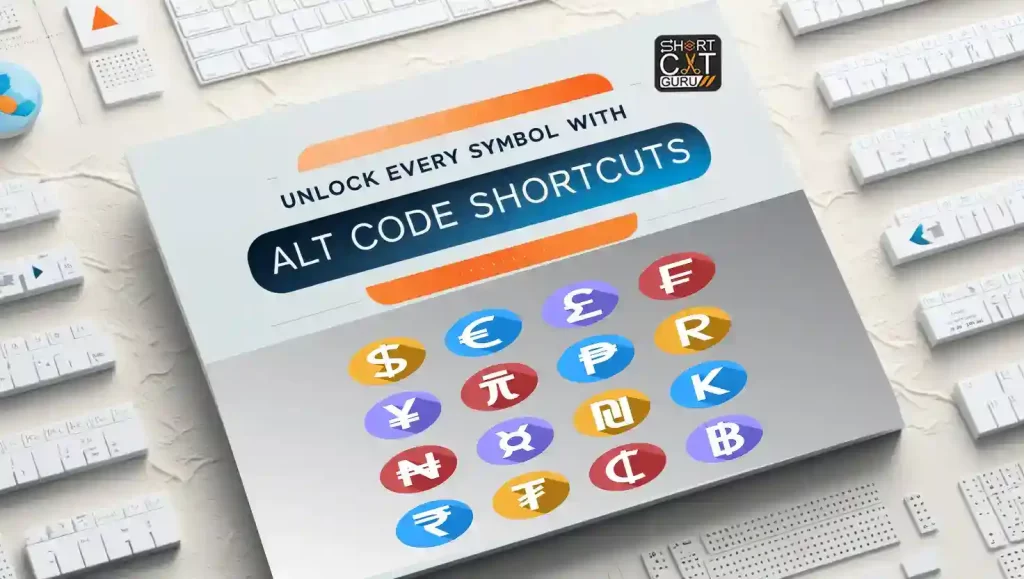
| Symbol | Description | Alt Code Shortcuts |
| ¢ | Cent Sign | ALT + 0162 |
| £ | Pound Sign | ALT + 0163 |
| ¥ | Yen Sign | ALT + 0165 |
| € | Euro Sign | ALT + 0128 |
| $ | Dollar Symbol | Alt + 0036 |
| ₹ | Indian Rupee Symbol | Alt + 8377 |
| ₽ | Russian Ruble | Alt + 8381 |
| ₿ | Bitcoin Symbol | Alt + 8383 |
Mathematical Symbol for Alt Code Shortcuts
| Symbol | Symbol Description | Alt + Key |
| ω | Small Omega | Alt + 969 |
| ρ | Small Rho | Alt + 961 |
| π | Small Pi | Alt + 960 |
| μ | Small Mu | Alt + 956 |
| λ | Small Lamda | Alt + 955 |
| η | Small Eta | Alt + 951 |
| δ | Small Delta | Alt + 948 |
| γ | Small Gamma | Alt + 947 |
| β | Small Beta | Alt + 946 |
| α | Small Alpha | Alt + 945 |
| Ω | Capital Omega | Alt + 937 |
| Φ | Capital Phi | Alt + 934 |
| Σ | Capital Sigma | Alt + 931 |
| Π | Capital Pi | Alt + 928 |
| Θ | Capital Theta | Alt + 920 |
| Δ | Capital Delta | Alt + 916 |
| Γ | Capital Gamma | Alt + 915 |
| ⌇ | Wavy Line | Alt + 8967 |
| ⌆ | Perspective | Alt + 8966 |
| ⌅ | Projective | Alt + 8965 |
| ⌀ | Diameter | Alt + 8960 |
| ⋝ | Equals To Or Greater Than | Alt + 8925 |
| ⋜ | Equals To Or Less Than | Alt + 8924 |
| ⋛ | Greater Than Equals To Or Less Than | Alt + 8923 |
| ⋚ | Less Than Equals To Or Greater Than | Alt + 8922 |
| ⊎ | Union With Plus | Alt + 8846 |
| ≩ | Greater Than But Not Equals To | Alt + 8809 |
| ≨ | Less Than But Not Equals To | Alt + 8808 |
| ≥ | Greater Than Or Equals To | Alt + 8805 |
| ≤ | Less Than Or Equals To | Alt + 8804 |
| ∪ | Union | Alt + 8746 |
| ∩ | Intersection | Alt + 8745 |
| ∖ | Left Slash | Alt + 8726 |
| ∕ | Right Slash | Alt + 8725 |
| ∓ | Minus Or Plus | Alt + 8723 |
| − | Minus Sign | Alt + 8722 |
| ∅ | Empty Set | Alt + 8709 |
| ∂ | Partial Differential | Alt + 8706 |
| ⁄ | Slash | Alt + 8260 |
| = | Equal | Alt + 61 |
| ÷ | Division | Alt + 247 |
| × | Multiplication Sign | Alt + 215 |
| ± | Plus Or Minus | Alt + 177 |
| 𝛛 | Bold Partial Differential | Alt + 120539 |
| 𝛚 | Bold Small Omega | Alt + 120538 |
| 𝛔 | Bold Small Sigma | Alt + 120532 |
| 𝛒 | Bold Small Rho | Alt + 120530 |
| 𝛑 | Bold Small Pi | Alt + 120529 |
| 𝛍 | Bold Small Mu | Alt + 120525 |
| 𝛌 | Bold Small Lamda | Alt + 120524 |
| 𝛈 | Bold Small Eta | Alt + 120520 |
| 𝛅 | Bold Small Delta | Alt + 120517 |
| 𝛄 | Bold Small Gamma | Alt + 120516 |
| 𝛃 | Bold Small Beta | Alt + 120515 |
| 𝛂 | Bold Small Alpha | Alt + 120514 |
| 𝛀 | Bold Capital Omega | Alt + 120512 |
| 𝚽 | Bold Capital Phi | Alt + 120509 |
| 𝚺 | Bold Capital Sigma | Alt + 120506 |
| 𝚷 | Bold Capital Pi | Alt + 120503 |
| 𝚯 | Bold Capital Theta | Alt + 120495 |
| 𝚫 | Bold Capital Delta | Alt + 120491 |
| 𝚪 | Bold Capital Gamma | Alt + 120490 |
| ⩶ | Three Equals | Alt + 10870 |
| ⩵ | Two Equals | Alt + 10869 |
| ⩲ | Plus Sign Above Equals Sign | Alt + 10866 |
| ⩐ | Closed Union With Serifs And Smash Product | Alt + 10832 |
| ⩏ | Double Square Union | Alt + 10831 |
| ⩎ | Double Square Intersection | Alt + 10830 |
| ⩍ | Closed Intersection With Serifs | Alt + 10829 |
| ⩌ | Closed Union With Serifs | Alt + 10828 |
| ⩋ | Intersection Beside And Joined With Intersection | Alt + 10827 |
| ⩊ | Union Beside And Joined With Union | Alt + 10826 |
| ⩉ | Intersection Above Bar Above Union | Alt + 10825 |
| ⩈ | Union Above Bar Above Intersection | Alt + 10824 |
| ⩇ | Intersection Above Union | Alt + 10823 |
| ⩆ | Union Above Intersection | Alt + 10822 |
| ⩅ | Union With Logical Or | Alt + 10821 |
| ⩄ | Intersection With Logical And | Alt + 10820 |
| ⩃ | Intersection With Overbar | Alt + 10819 |
| ⩂ | Union With Overbar | Alt + 10818 |
| ⩁ | Union With Minus | Alt + 10817 |
| ⩀ | Intersection With Dot | Alt + 10816 |
| ⨿ | Amalgamation | Alt + 10815 |
| ⨻ | Multiplication Sign in Triangle | Alt + 10811 |
| ⨺ | Minus SIGN IN TRIANGLE | Alt + 10810 |
| ⨹ | Plus Sign In Triangle | Alt + 10809 |
| ⨸ | Circled Division Sign | Alt + 10808 |
| ⨷ | Multiplication Sign In Double Circle | Alt + 10807 |
| ⨶ | Circled Multiplication Sign With Circumflex Accent | Alt + 10806 |
| ⨵ | Multiplication Sign In Right Half Circle | Alt + 10805 |
| ⨴ | Multiplication Sign In Left Half Circle | Alt + 10804 |
| ⨳ | Smash Product | Alt + 10803 |
| ⨲ | Semidirect Product With Bottom Closed | Alt + 10802 |
| ⨱ | Multiplication Sign With Underbar | Alt + 10801 |
| ⨰ | Multiplication Sign With Dot Above | Alt + 10800 |
| ⨮ | Plus Sign In Right Half Circle | Alt + 10798 |
| ⨭ | Plus Sign In Left Half Circle | Alt + 10797 |
| ⨬ | Minus Sign With Rising Dots | Alt + 10796 |
| ⨫ | Minus Sign With Falling Dots | Alt + 10795 |
| ⨪ | Minus Sign With Dot Below | Alt + 10794 |
| ⨩ | Minus Sign With Comma Above | Alt + 10793 |
| ⨨ | Plus Sign With Black Triangle | Alt + 10792 |
| ⨧ | Plus Sign With Subscript Two | Alt + 10791 |
| ⨦ | Plus Sign With Tilde Below | Alt + 10790 |
| ⨥ | Plus Sign With Dot Below | Alt + 10789 |
| ⨤ | Plus Sign With Tilde Above | Alt + 10788 |
| ⨣ | Plus Sign With Circumflex Accent Above | Alt + 10787 |
| ⨢ | Plus Sign With Small Circle Above | Alt + 10786 |
| ⨝ | Join | Alt + 10781 |
| ⨜ | Lower Integral | Alt + 10780 |
| ⨛ | Upper Integral | Alt + 10779 |
| ⨚ | Integral With Union | Alt + 10778 |
| ⨙ | Integral With Intersection | Alt + 10777 |
| ⨘ | Integral With Times Sign | Alt + 10776 |
| ⨗ | Integral With Leftwards Arrow With Hook | Alt + 10775 |
| ⨖ | Quaternion Integral Operator | Alt + 10774 |
| ⨕ | Integral Around A Point Operator | Alt + 10773 |
| ⨔ | Line Integration Not Including The Pole | Alt + 10772 |
| ⨓ | Line Integration With Semicircular Path Around Pole | Alt + 10771 |
| ⨒ | Line Integration With Rectangular Path Around Pole | Alt + 10770 |
| ⨑ | Anticlockwise Integration | Alt + 10769 |
| ⨐ | Circulation Function | Alt + 10768 |
| ⨏ | Integral Average With Slash | Alt + 10767 |
| ⨎ | Integral With Double Stroke | Alt + 10766 |
| ⨍ | Finite Part Integral | Alt + 10765 |
| ⨌ | Quadruple Integral Operator | Alt + 10764 |
| ⨋ | Summation With Integral | Alt + 10763 |
| ⨊ | Modulo Two Sum | Alt + 10762 |
| ⧻ | Triple Plus | Alt + 10747 |
| ⧺ | Double Plus | Alt + 10746 |
| ⧁ | Circled Greater Than | Alt + 10689 |
| ⧀ | Circled Less Than | Alt + 10688 |
| ⦼ | Circled Rotated Division Sign | Alt + 10684 |
| ⦻ | Circled Cross Mark | Alt + 10683 |
| ⦺ | Circled Perpendicular | Alt + 10682 |
| ⦷ | Circled Parallel | Alt + 10679 |
| ⦰ | Reversed Empty Set | Alt + 10672 |
| ⦟ | Acute Angle | Alt + 10655 |
| ⦝ | Right Angle With Arc | Alt + 10653 |
| ⦜ | Right Angle With Square | Alt + 10652 |
| ⦀ | Triple Vertical Bar Delimiter | Alt + 10624 |
| ➗ | Bold Division | Alt + 10135 |
Punctuation Mark for Alt Code Shortcuts
| Symbol | Description | Alt Code Shortcuts |
| • | Bullet Point | ALT + 0149 |
| § | Section Symbol | ALT + 0167 |
| ¶ | Paragraph Symbol | ALT + 0182 |
| © | Copyright Symbol | ALT + 0169 |
Accented Character for Alt Code Shortcuts
| Character | Description | Alt Code Shortcuts |
| á | Lowercase a with Acute | ALT + 0225 |
| é | Lowercase e with Acute | ALT + 0233 |
| ñ | Lowercase n with Tilde | ALT + 0241 |
| ü | Lowercase u with Diaeresis | ALT + 0252 |
Diacritical Marks and Ligature for Alt Code Shortcuts
| Character | Description | Alt Code Shortcuts |
| æ | Lowercase ae Ligature | ALT + 0230 |
| ß | Sharp S, German Eszett | ALT + 0223 |
| ø | Lowercase o with Stroke | ALT + 0248 |
| å | Lowercase a with Ring Above | ALT + 0229 |
Greek Alphabet Symbol for Alt Characters Keyboard
| Symbol | Description | Alt Code Shortcuts |
| Α | Upper-case Alpha | Alt+913 |
| Β | Upper-case Beta | Alt+914 |
| Γ | Upper-case Gamma | Alt+915 |
| Δ | Upper-case Delta | Alt+916 |
| Ε | Upper-case Epsilon | Alt+917 |
| Ζ | Upper-case Zeta | Alt+918 |
| Η | Upper-case Eta | Alt+919 |
| Θ | Upper-case Theta | Alt+920 |
| Ι | Upper-case Iota | Alt+921 |
| Κ | Upper-case Kappa | Alt+922 |
| Λ | Upper-case Lambda | Alt+923 |
| Μ | Upper-case Mu | Alt+924 |
| Ν | Upper-case Nu | Alt+925 |
| Ξ | Upper-case Xi | Alt+926 |
| Ο | Upper-case Omicron | Alt+927 |
| Π | Upper-case Pi | Alt+928 |
| Ρ | Upper-case Rho | Alt+929 |
| Σ | Upper-case Sigma | Alt+931 |
| Τ | Upper-case Tau | Alt+932 |
| Υ | Upper-case Upsilon | Alt+933 |
| Φ | Upper-case Phi | Alt+934 |
| Χ | Upper-case Chi | Alt+935 |
| Ψ | Upper-case Psi | Alt+936 |
| Ω | Upper-case Omega | Alt+937 |
| α | Lower-case Alpha | Alt+945 |
| β | Lower-case Beta | Alt+946 |
| γ | Lower-case Gamma | Alt+947 |
| δ | Lower-case Delta | Alt+948 |
| ε | Lower-case Epsilon | Alt+949 |
| ζ | Lower-case Zeta | Alt+950 |
| η | Lower-case Eta | Alt+951 |
| θ | Lower-case Theta | Alt+952 |
| ι | Lower-case Iota | Alt+953 |
| κ | Lower-case Kappa | Alt+954 |
| λ | Lower-case Lambda | Alt+955 |
| μ | Lower-case Mu | Alt+956 |
| ν | Lower-case Nu | Alt+957 |
| ξ | Lower-case Xi | Alt+958 |
| ο | Lower-case Omicron | Alt+959 |
| π | Lower-case Pi | Alt+960 |
| ρ | Lower-case Rho | Alt+961 |
| ς | Lower-case Final Sigma | Alt+962 |
| σ | Lower-case Sigma | Alt+963 |
| τ | Lower-case Tau | Alt+964 |
| υ | Lower-case Upsilon | Alt+965 |
| χ | Lower-case Chi | Alt+967 |
| φ | Lower-case Phi | Alt+968 |
| ψ | Lower-case Psi | Alt+968 |
| ω | Lower-case Omega | Alt+969 |
Glyphs Alphabet symbol for Alt Characters Keyboard
| Symbol | Description | Alt Code Shortcuts |
| À | Upper-case A with Grave | Alt+0192 |
| Á | Upper-case A with Acute | Alt+0193 |
| Â | Upper-case A with Circumflex | Alt+0194 |
| Ã | Upper-case A with Tilde | Alt+0195 |
| å | Lower-case A with Ring | Alt+0229 |
| â | Lower-case A with Circumflex | Alt+131 |
| ä | Lower-case A with Diaeresis | Alt+132 |
| à | Lower-case A with Grave | Alt+133 |
| å | Lower-case A with Ring | Alt+134 |
| Ä | Upper-case A with Diaeresis | Alt+142 |
| Å | Upper-case A with Ring | Alt+143 |
| á | Lower-case A with Acute | Alt+160 |
| Č | Upper-case C with Caron | 010C+Alt+X |
| č | Lower-case C with Caron | 010D+Alt+X |
| Ç | Upper-case C with Cedilla | Alt+128 |
| ç | Lower-case C with Cedilla | Alt+135 |
| Ĕ | Upper-case E with Breve | 0114+Alt+X |
| ĕ | Lower-case E with Breve | 0115+Alt+X |
| È | Upper-case E with Grave | Alt+0200 |
| é | Lower-case E with Acute | Alt+130 |
| ê | Lower-case E with Circumflex | Alt+136 |
| ë | Lower-case E with Diaeresis | Alt+137 |
| è | Lower-case E with Grave | Alt+138 |
| É | Upper-case E with Acute | Alt+144 |
| Ê | Upper-case E with Circumflex | Alt+202 |
| Ë | Upper-case E with Diaeresis | Alt+203 |
| Ğ | Upper-case G with Breve | 011E+Alt+X |
| ğ | Lower-case G with Breve | 011F+Alt+X |
| Ģ | Upper-case G with Cedilla | 0122+Alt+X |
| ģ | Lower-case G with Cedilla | 0123+Alt+X |
| Ì | Upper-case I with Grave | Alt+0204 |
| Í | Upper-case I with Acute | Alt+0205 |
| Î | Upper-case I with Circumflex | Alt+0206 |
| Ï | Upper-case I with Diaeresis | Alt+0207 |
| ï | Lower-case I with Diaeresis | Alt+139 |
| î | Lower-case I with Circumflex | Alt+140 |
| ì | Lower-case I with Grave | Alt+141 |
| í | Lower-case I with Acute | Alt+161 |
| ñ | Lower-case N with Tilde | Alt+164 |
| Ñ | Upper-case N with Tilde | Alt+165 |
| ø | Lower-case O with Stroke | 00F8+Alt+X |
| Ō | Upper-case O with Macron | 014C+Alt+X |
| ō | Lower-case O with Macron | 014D+Alt+X |
| Ò | Upper-case O with Grave | Alt+0210 |
| Ó | Upper-case O with Acute | Alt+0211 |
| Ø | Upper-case O with Stroke | Alt+0216 |
| ô | Lower-case O with Circumflex | Alt+147 |
| ö | Lower-case O with Diaresis | Alt+148 |
| ò | Lower-case O with Grave | Alt+149 |
| Ö | Upper-case O with Diaeresis | Alt+153 |
| ó | Lower-case O with Acute | Alt+162 |
| Ô | Upper-case O with Circumflex | Alt+212 |
| Ŝ | Upper-case S with Circumflex | 015C+Alt+X |
| ŝ | Lower-case S with Circumflex | 015D+Alt+X |
| Ş | Upper-case S with Cedilla | 015E+Alt+X |
| ş | Lower-case S with Cedilla | 015F+Alt+X |
| Ú | Upper-case U with Acute | 00DA+Alt+X |
| ū | Lower-case U with Macron | 016B+Alt+X |
| Ū | Upper-case U with Macron | Alt+016A |
| Ù | Upper-case U with Grave | Alt+0217 |
| Û | Upper-case U with Circumflex | Alt+0219 |
| ü | Lower-case U with Diaeresis | Alt+129 |
| û | Lower-case U with Circumflex | Alt+150 |
| ù | Lower-case U with Grave | Alt+151 |
| Ü | Upper-case U with Diaeresis | Alt+154 |
| ú | Lower-case U with Acute | Alt+163 |
| Ÿ | Upper-case Y with Diaeresis | 0159+Alt+X |
| ÿ | Lower-case Y with Diaeresis | Alt+152 |
Advantages of Using Alt Code symbol
Speed and Efficiency
Memorizing commonly used ALT code symbol can save considerable time; rather, this is very handy at any moment when one needs to work with any symbol not represented on the standard keyboard.
Accessibility
ALT codes offer an easy way of accessing special characters without having to navigate through character maps or additional software tools that provide such functionality.
Consistency Across Applications
From word processors to spreadsheet applications to web browsers, ALT codes offer consistent input methods across most Windows applications.
Issues and Troubleshooting Common problems arise when using ALT codes, though these have general uses. Here are a few typical issues along with their fixes:
ALT Codes Not Working
If ALT codes will not work, make sure the Num Lock is on. Since ALT codes require the numeric keypad, failing to have the Num Lock on will result in ALT codes that are not readable.
Conflicting with Alt Characters Keyboard
Sometimes these ALT codes interfere with some software shortcuts. If that is the case, then you can use this character map utility option available on Windows.
Advanced ALT Codes: Expanding Your Character Set
While the more frequently used ALT codes already provide a wide range of symbols and characters, further advanced codes exist that allow for even more specialized characters. This would include various language symbols, scientific notations, and other punctuation marks that are of great use in technical writing, academia, and professional correspondence.
Extended Punctuation and Special Marks Computer Symbol Codes
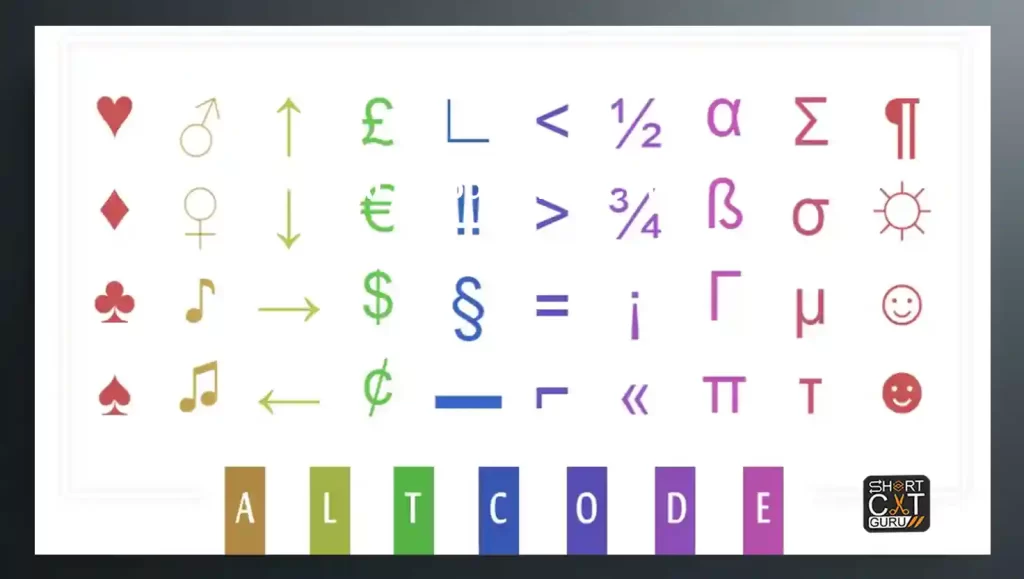
| Symbol | Description | Alt Code Shortcuts |
| † | Dagger | ALT + 0134 |
| ‡ | Double Dagger | ALT + 0135 |
| ‰ | Per Mille Sign | ALT + 0137 |
| ‖ | Double Vertical Line | ALT + 8214 |
Arrows and Directional Computer Symbol Codes
| Symbol | Description | Alt Code Shortcuts |
| ← | Left Arrow | ALT + 27 |
| ↑ | Up Arrow | ALT + 24 |
| → | Right Arrow | ALT + 26 |
| ↓ | Down Arrow | ALT + 25 |
Box Drawing and Geometric Shapes Computer Symbol Codes
| Symbol | Description | Alt Code Shortcuts |
| ─ | Light Horizontal Line | ALT + 196 |
| │ | Light Vertical Line | ALT + 179 |
| ┌ | Light Down and Right Corner | ALT + 218 |
| └ | Light Up and Right Corner | ALT + 192 |
Scientific Notations and Mathematical Alt Symbols
| Symbol | Description | Alt Code Shortcuts |
| ∞ | Infinity | ALT + 236 |
| √ | Square Root | ALT + 251 |
| ∫ | Integral | ALT + 8747 |
| ≈ | Almost Equal To | ALT + 247 |
Language-Specific Alt Characters Keyboard
For those who routinely work in foreign languages, or that have specific diacritical needs, ALT codes also offer a wider range of characters.
French and German Characters
| Character | Description | Alt Code Shortcuts |
| é | Lowercase e with Acute | ALT + 0233 |
| è | Lowercase e with Grave | ALT + 0232 |
| ü | Lowercase u with Diaeresis | ALT + 0252 |
| ß | Sharp S, German Eszett | ALT + 0223 |
Spanish and Portuguese Alt Characters Keyboard
| Character | Description | Alt Code Shortcuts |
| ñ | Lowercase n with Tilde | ALT + 0241 |
| á | Lowercase a with Acute | ALT + 0225 |
| í | Lowercase i with Acute | ALT + 0237 |
| ç | Lowercase c with Cedilla | ALT + 0231 |
Unicode and ALT Codes: More Choices
Strictly speaking, old-style ALT codes are restricted to the extended ASCII set. Under Windows, there is a way of using Unicode characters, which provides options for thousands more symbols. Unicode characters represent nearly every character currently in use for most languages and also include many specialized characters used in various fields.
Using Unicode ALT Symbols
- Strike the ALT key and hold.
- On the numeric keypad, type the SIGN “+“.
- Type the hexadecimal code of the character in Unicode.
- Let go of the ALT key, and it will bring the character out.
Example of Unicode ALT Symbols:
- ALT + 03A9: Ω Greek Capital Letter Omega
- ALT + 221E: ∞ Infinity
- ALT + 2665: ♥ Black Heart Suit
Application of Unicode Keyboard Characters codes
- Linguistics: The inclusion of intricate language-specific characters and phonetic symbols.
- Mathematics: Advanced mathematical notations in technical documents can be used.
- Art and Design: Include aesthetic and illustrative text.
Customizing ALT Codes in Windows
As a heavy user of the same set of symbols or characters, being able to customize your ALT code symbol experience can be a godsend. Windows does allow for creating custom keyboard layouts and macros that will be able to map specific ALT codes onto easier-to-remember key combinations.
Creating Custom Keyboard characters codes
- Download and install the Microsoft Keyboard Layout Creator MKLC.
- Create your keyboard layout and map your frequently used symbols to the keys.
- Test your layout and do adjustments as needed.
- Save the new layout and activate it through the language settings in Windows.
Benefits of Custom Keyboard characters codes
- More Efficient: Access at an instance rather than having to remember often complicated ALT codes for each symbol.
- Customization: Fit the keyboard to one’s professional or personal use.
- Cross-Application Compatibility: Use your custom layout across all Windows applications.
Efficient Ways of Using ALT Code symbols
- Memorize Commonly Used ALT Codes : For those characters you find yourself using frequently, it’s worth committing their ALT codes to memory. This saves time and streamlines your workflow, allowing you to insert these characters without needing to reference a chart or guide.
- Create a Custom Cheat Sheet : If memorizing the ALT codes is not feasible, then create a cheat sheet of commonly used ALT codes. Keep this either in digital or printed form so it’s easy to refer to when a code is needed.
- Character Map Utility : Character Map is a utility included in Windows that allows you to view characters and copy them to your clipboard along with their ALT code equivalents. This is useful when you’re trying to find the symbolism that you just can’t access through conventional ALT codes.
- Combine ALT Codes with Keyboard Shortcuts : You can further boost your efficiency using the ALT codes in combination with other keyboard shortcuts. You can create special macros or shortcut keys for inserting certain ALT code characters you use the most. This will save a lot of keystrokes.
- Take Organization to the Next Level Using Custom Keyboard Layouts : For users who consistently have to enter special symbols, extending your keyboard may be just what the doctor ordered. Perhaps you’d like to bind certain ALT codes to more intuitive key combinations or create a layout that allows you to access symbols directly without using the ALT key at all.
- Using ALT Codes Across Applications : Note that some programs may respond differently to, or not at all ALT codes. If you will be using ALT codes within a new software environment, test them first to ensure they produce the desired characters. If a program does not support the use of any ALT codes, explore other options for obtaining the desired characters such as copying and pasting from a Character Map or by using Unicode.
- Use ALT Codes to Provide Better Accessibility : ALT codes can also play an important role in ensuring accessibility, especially for creating well-readable documents for persons with disabilities. Additionally, the use of ALT codes for inserting the proper symbols and characters will help enhance the readability of the documents and make them more usable for a greater number of users.
- Unicode for Extended Characters : If you find that the standard ALT codes just won’t cut it, take the plunge into the deep end and learn about Unicode characters. You can find just about any character you would need, from advanced mathematical symbols to emoji, among a massive set of symbols.
ALT Codes Extended Beyond Windows
ALT Code Symbol on macOS
While ALT codes do not function on macOS the same way as in Windows, there are alternative methods to insert such characters into a document. It makes use of the Option key along with other keys to create many symbols and characters.
ALT Code Symbol on Linux
In Linux, most of the special characters are obtained from key combinations that depend on which desktop is being used. The Gnome Character Map utility or KDE’s KCharSelect offers quick ways to obtain and insert any special character desired. Alternatively, in Linux, entry methods similar to Windows are available.
ALT Code Symbol in Web Development
ALT Codes have very little direct use in web development; however, their HTML entity or Unicode equivalents can be used to ensure that special characters show correctly across a variety of web browsers and other devices.
ALT Code Symbol and International Context
For those individuals working in multilingual environments, ALT codes make it very quick to insert characters from other languages. This is certainly useful when someone is working with a translation, studying a language, or corresponding internationally with business.
ALT Code Symbol for Consistency and Quality
Check the Consistency of Different Documents
Special characters in ALT codes are very useful for use in more than one document, especially professional or academic ones. Such documents require consistency in special character usage to avoid causing confusion or misunderstandings.
Check the Proofreading Accuracy
After using ALT codes in inserting characters, always check your document if the proper symbols have been used and appear correctly. Certain characters might look different under the other fonts or software that will be utilized on the said document which will affect its readability or appearance.
Backup Your Custom Layouts
If you have created unique keyboard layouts or macros with ALT codes, make sure you regularly back up such configurations. This way, every time some update occurs to software or an adjustment to the system, your settings are preserved.
Share ALT Code Symbol with Others
If you are part of a work team, share the knowledge of ALT codes with your co-workers. Giving a quick tutorial on the different ALT codes, or sharing a personal cheat sheet, may help them to better speed up their job and perfect the quality of it.
Frequently Asked Questions
1. What are ALT code symbol, and how do they work?
One type of keyboard shortcut in Windows, ALT codes insert special characters and symbols that you do not typically find on the standard keyboard. You create the characters from the extended ASCII set by holding down the ALT key and typing a specific numeric code on the numeric keypad. These are quite useful codes to insert, in a flash, some non-standard punctuation, mathematical symbols, foreign language characters, and other special symbols.
2. Do the ALT codes work for all types of keyboards and operating systems?
ALT codes primarily work with Windows operating systems. The ALT codes need a numeric keypad; if you have a laptop or keyboard that doesn’t have a separate numeric pad, then you can activate the FN key with the Function keys to simulate it, or you can attach an external numeric keypad. Similar functionality with using other operating systems like macOS and Linux exist, but special character input is different. For instance, macOS uses an Option key in combination with specific letters or numbers, while with Linux applications certain key combinations or character map utilities are available, which can be used in a very different way.
3. How do I type ALT codes on a laptop without a numeric keypad?
So, with ALT codes, all you’d have to do on a laptop without the numeric keypad is turn “Num Lock” on and use keys that double as numeric keys; these are usually the keys to the right-hand side of the keyboard, marked by little numbers or symbols. Another option is to purchase an external USB numeric keyboard, which can then be connected to a laptop for easier use of ALT codes.
4. In what ways does ALT code differ from Unicode characters?
ALT codes account for only the 256 different characters in the extended ASCII set. Unicode is a much larger character encoding, able to support more than 143,000 characters across diverse writing systems, along with their symbols, emoji, and scripts. Whereas ALT codes pertain exclusively to Windows itself, Unicode characters are supported across a wide range of platforms and devices.
5. Can I create my own ALT code, or at least modify some that already exist?
You cannot, per se, create your own ALT codes, but you can customize a keyboard layout using something like the Microsoft Keyboard Layout Creator MKLC. You can remap keys or hotkeys for inserting frequently used symbols and characters other words, you will be creating your own custom set of ALT-like shortcuts.
6. Why do some ALT code symbol not work on my computer?
Reasons why some ALT code symbol would not work:
- Wrong Input Method: It should be a numeric keypad and not the number keys.
- Regional Keyboard Settings: More often than not, certain settings of a regional keyboard conflict with certain ALT codes.
- Software Limitations: Most applications or software tend not to support all ALT codes, especially those that pertain to Unicode characters.
7. Are there ALT codes for emojis?
There are ALT codes to insert basic emojis, like ☺ ALT + 1 and ☻ ALT + 2, but generally it is better to use the integrated emoji keyboard of modern operating systems because ALT codes are very limited in that respect.
8. How do I find the ALT code for a specific character?
These are found on various online databases and character maps, or by referring to extended ASCII tables. Windows even included in all versions of its operating system a utility called Character Map. You can search for characters and find their ALT code.
9. Can I use ALT codes in HTML or web development?
HTML entities or Unicode would be more common ways to do this in HTML and web development. HTML entities are strings starting with the ampersand (&) and finishing with a semicolon (;) that represent certain characters. Examples: © for the copyright sign. Unicode characters can also be represented by using their hexadecimal code points using the &#x notation: an example could be © for the copyright sign.
10. What should I do if an ALT code is not yielding the character expected?
In case any ALT code yields an unexpected character, then please check:
- Correct Code: You are using the correct ALT code for your character.
- Keyboard Layout: You will need to check that your keyboard layout is matched to the expected language and regional settings.
- Num Lock: Num Lock is enabled on your numeric keypad.
Conclusion
It’s worth the time it takes to memorize or obtain ALT codes and some of the more general Unicode characters to drastically extend your capabilities in nonstandard and specialty character work within Windows. For writing documents, coding, and communicating in languages other than your own-any medium, really are a great quick way to spice up your text with just the right symbols and characters. You will be well on your way to Unicode, using both the standard and extended ALT codes, and you will make the work functional, nice to look at, and complete.
Your point of view caught my eye and was very interesting. Thanks. I have a question for you.
Your point of view caught my eye and was very interesting. Thanks. I have a question for you.
I don’t think the title of your article matches the content lol. Just kidding, mainly because I had some doubts after reading the article.
I don’t think the title of your article matches the content lol. Just kidding, mainly because I had some doubts after reading the article.
Can you be more specific about the content of your article? After reading it, I still have some doubts. Hope you can help me.